
Technical Back End (WIP)
Hubble
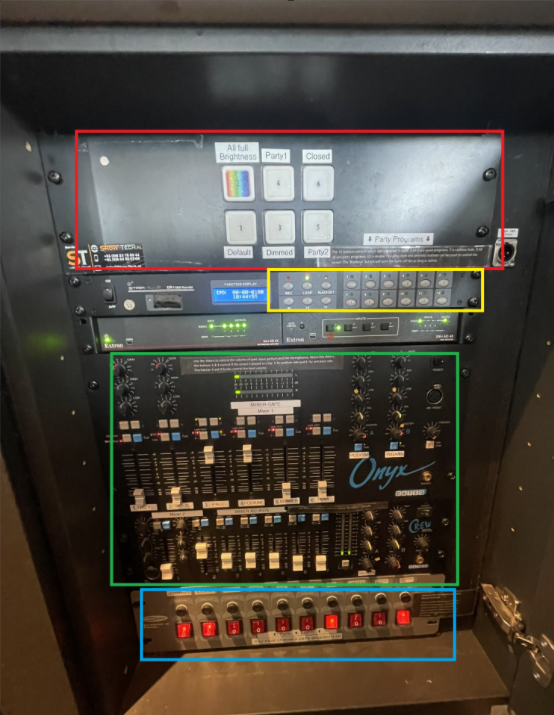
To turn the light and sounds on, press all the red buttons on the bottom (blue part) from left to right. To turn everything of,off, press them from right to left.
Music
- The music is played via
theSpotifyexamon the Ipad behind the bar. If you want to play a song, ask the SVH to unlock the ipad for you. - The level of the sound is determined by the sliders in the green part. The fader labeled Ipad is used for the spotify.
- If something is wrong with the sound, check if all turning knobs are aligned with the tapes, as well as the LEDs.
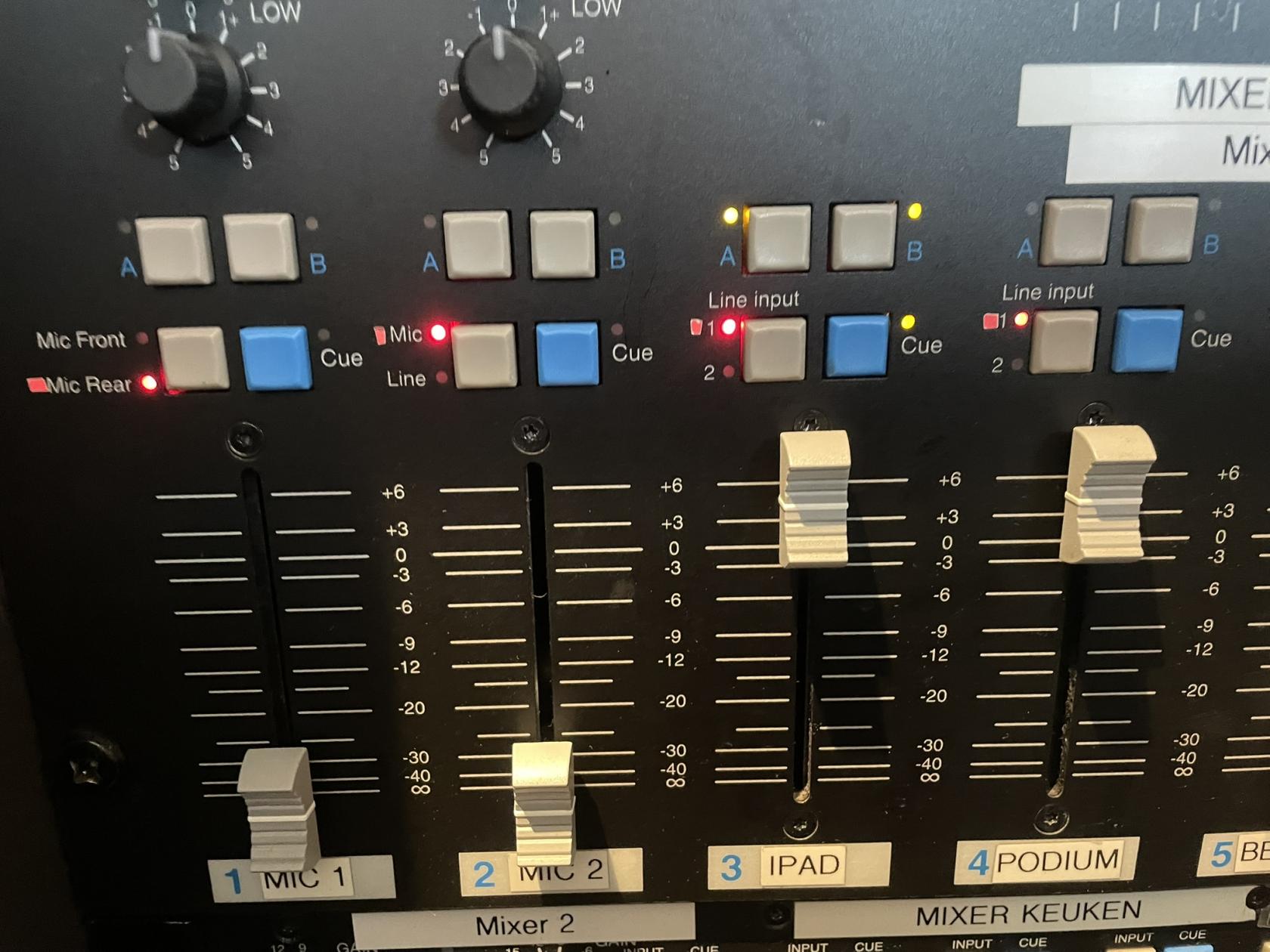
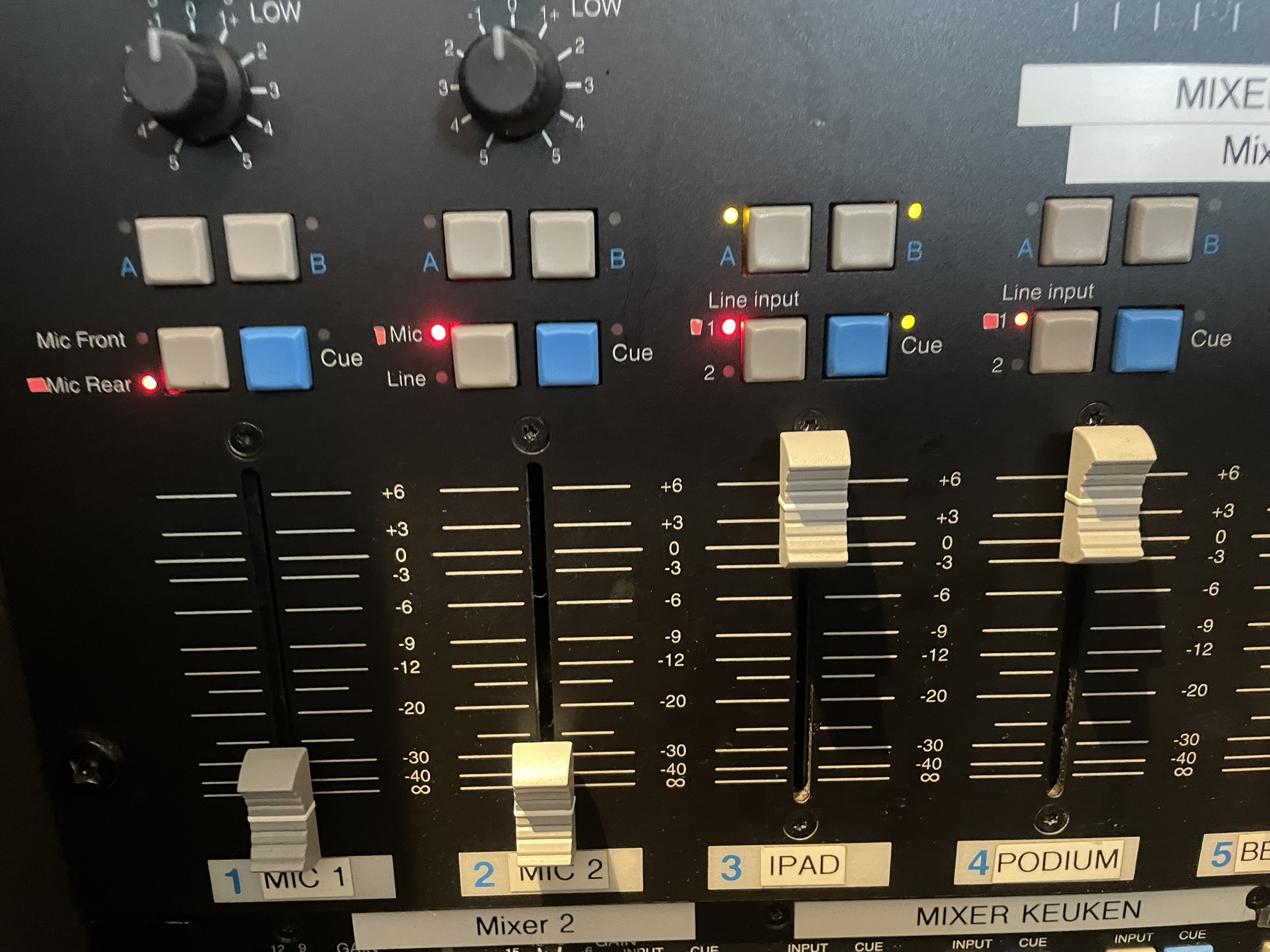
- When a presentation/pubquiz/ etc is happening, it can be nice to turn of music on that side of the bar. All sound inputs can be turned on seperately for side A(podium) and side B (black tables). On the picture above you can see that IPAD is on on both sides, and all other inputs are turned off.
Lights
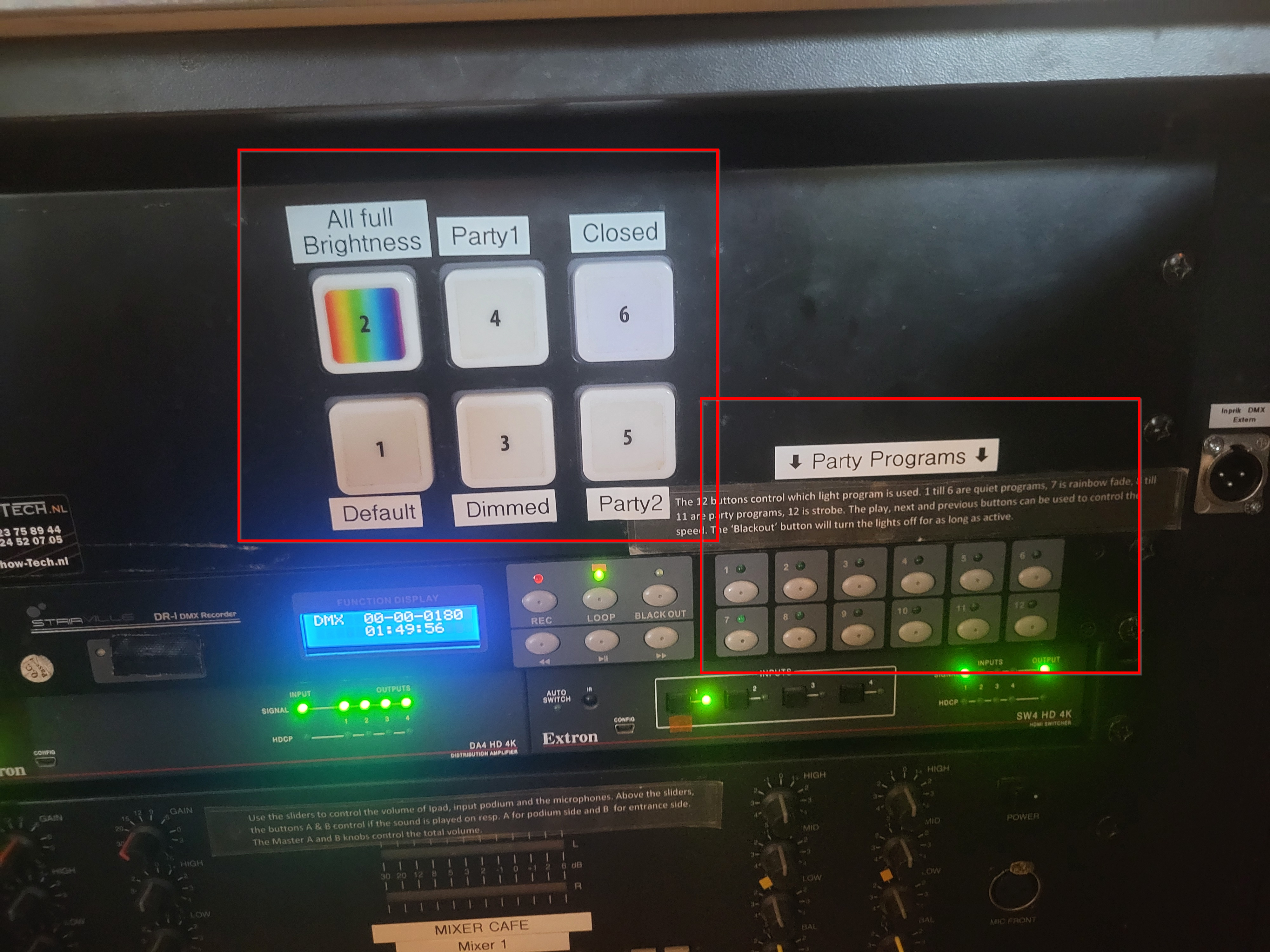
The Party Programs in the bottom right of the image can be selected for more expressive lighting with, among others, the moving heads. If the evening can use more funky lighting one of these can be activated by the SVH.
Screens
The two screens in Hubble are generally not touched, sometimes there are guests in the bar that would like to either watch something or play a game on them. Then with permission of the SVH they can connect to a screen using the HDMI cable that is hanging underneath.
The remote for the screens can be found in the left door all the way on the right behind the bar.
Beamer
Microphones
- If people want to use a microphone, this can be found on the inside of the door next to the panel.
Sound limiter