
Cash register (TO DO)
Taking a normal order
When a guest wants to order something you follow these steps:
- You greet them and ask them whether they are a student at the TU/
ee. If they do not mention an association they have to show their student card.- Fontys, PhD or any other student from another university does NOT count
- If they mention they are from a certain association or have a personal tab you either scan their barcode on the sheet next to the register (Hubble only), or you look them up in the register (see next section)
- You select the items they want to order (see section Selecting menu items)
- Let them pay by selecting the PIN button
- If it is a personal tab they have the option to put it on their credit (tab) without paying, for this select the "Credit opboeken" button
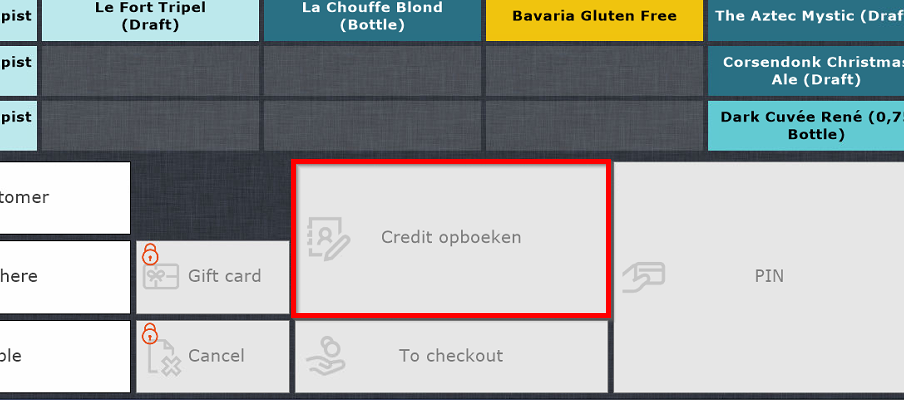
- If it is a personal tab they have the option to put it on their credit (tab) without paying, for this select the "Credit opboeken" button
- If the order includes food, give the first receipt to the guest, this is for them to keep track of their food order.
- Always make sure there is a person in the kitchen whenever food is ordered
- Place the second receipt (or only receipt if no food) next to the register for the other bartenders to make. You can of course make it yourself if there are no more guests in front of the register.
Looking up an association/person
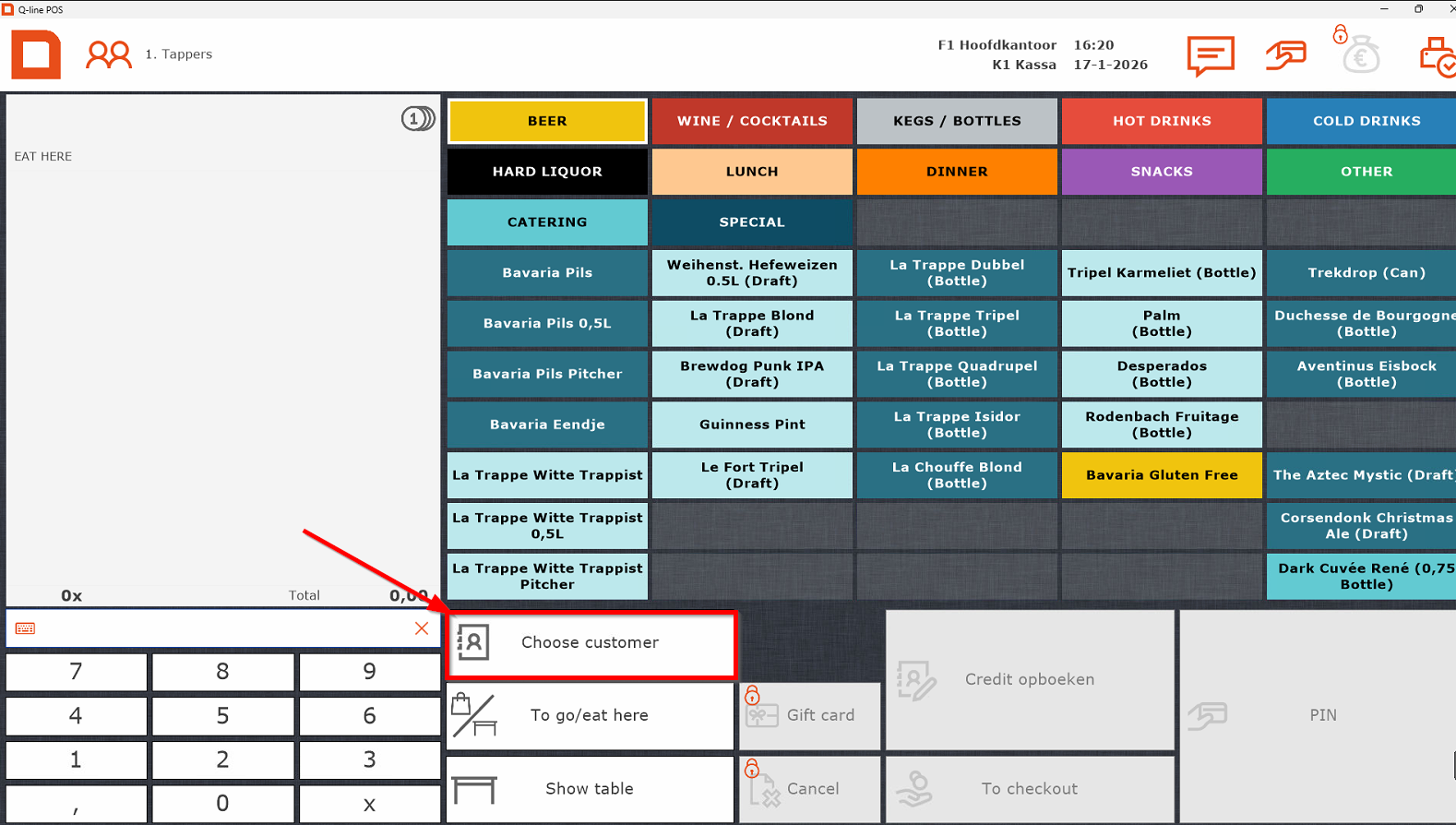
- Select "Choose customer"
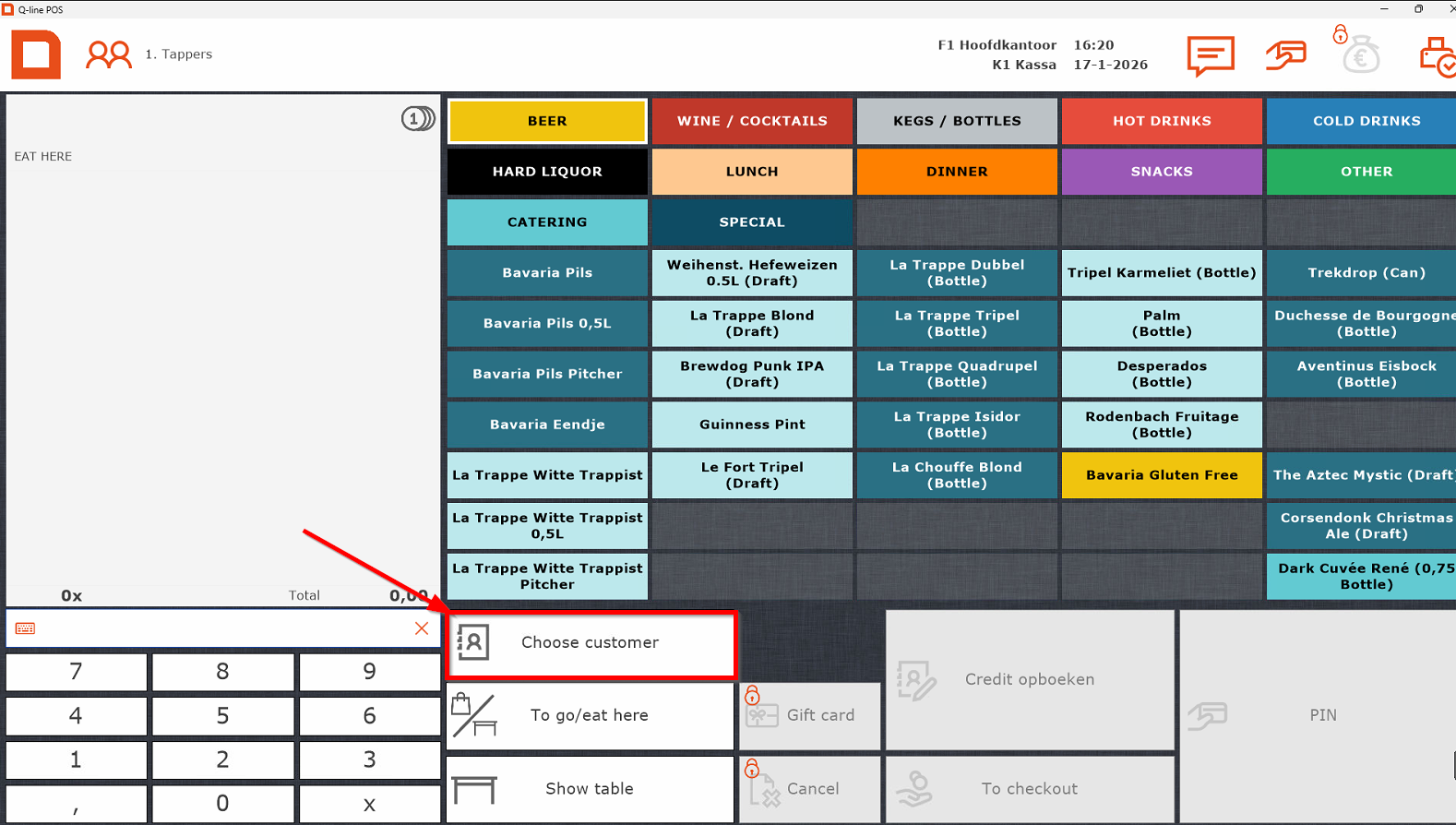
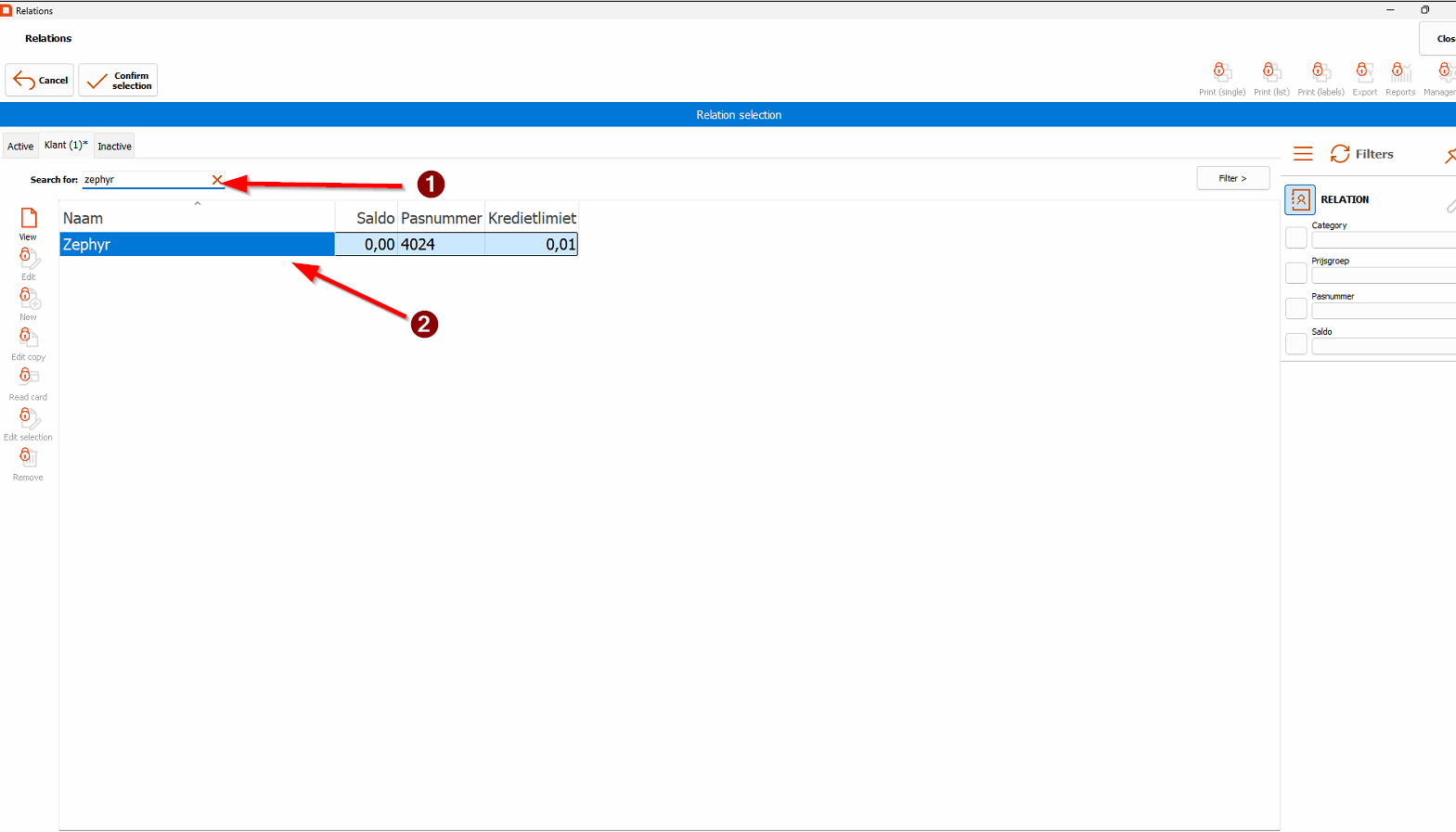
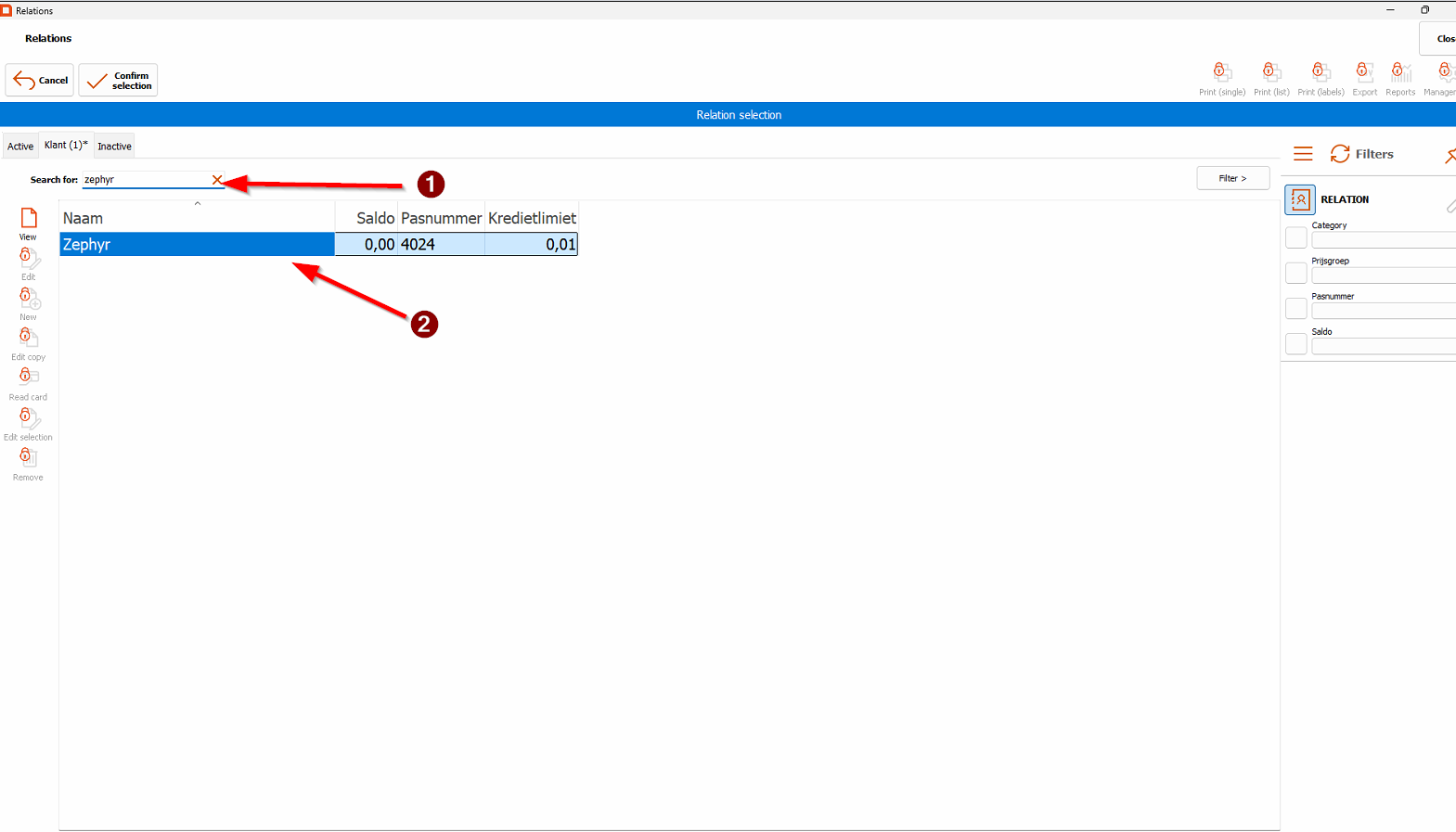
- Afterwards select association/person by
- Searching it in the search bar
- Double tapping the entry or press enter on the keyboard
- The name should now appear above the order.
Selecting menu items
Hubble
The register items are categorized in several categories:
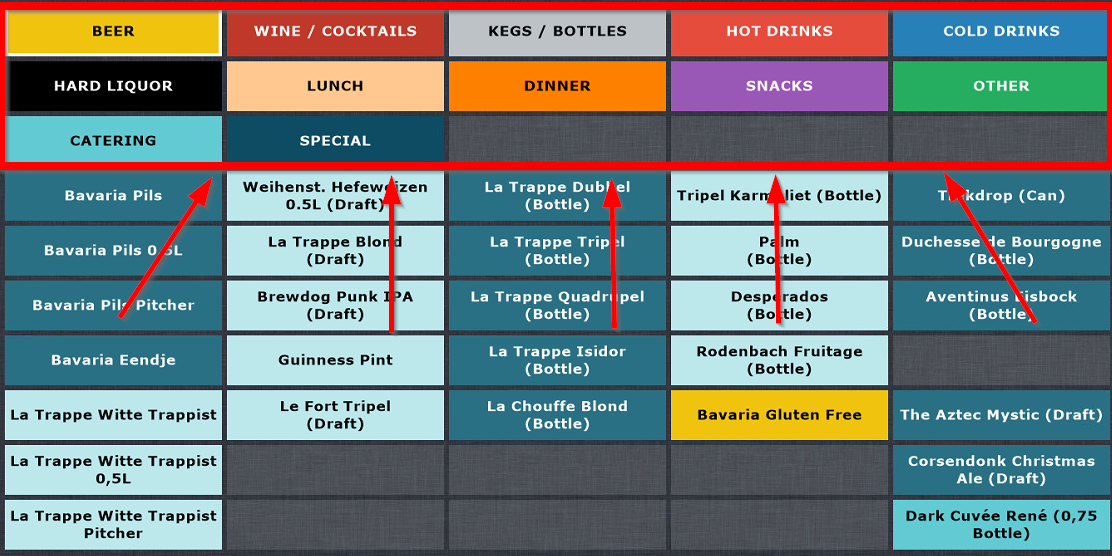
Most of these categories speak for themselves, but there are a few remarks to be made about the categories
- BEER (see above)
A Bavaria Eendje is 11 beers where the 11th beer is free. If someone orders this and wants it in the duck shaped beer meter, they have to give hand in their student card as deposit, which they will get back after they hand the beer meter back in at the bar. This is done so they do not get stolen. On the beer meters you can find a number, below the cash register there is a card holder with numbers as well. Put the student card in the corresponding slot based on the number of the beer meter.
You can navigate this category with a rule of thumb:- The first row is Bavaria Pilsner and La Trappe Witte trappist
- The second row contains our popular draft beers
- The third and fourth row contains our popular bottled beers
- The last row contains our seasonal beers both in cans/bottles and on draft
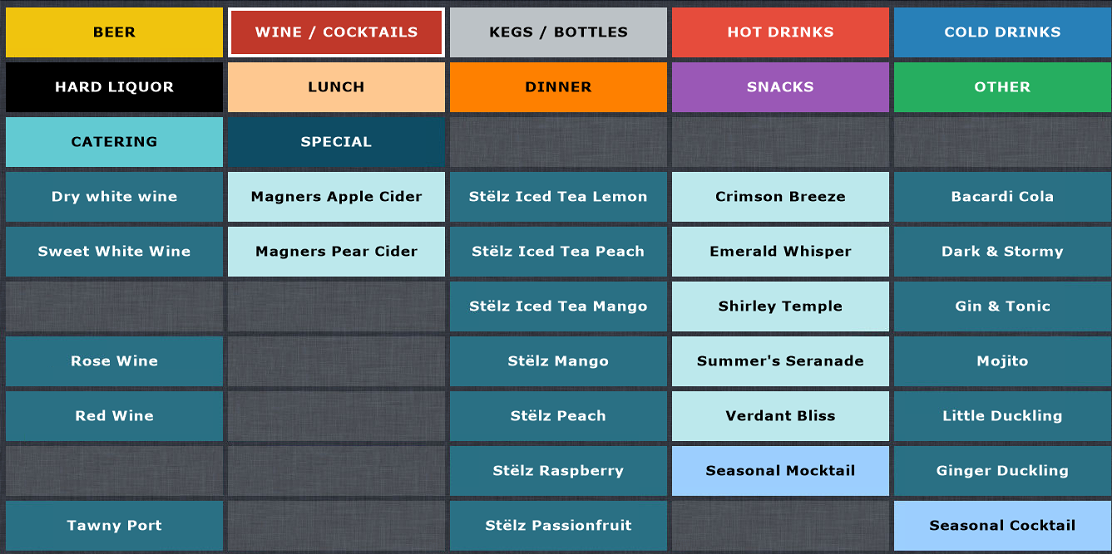
- WINE / COCKTAILS
Apart from Wine and cocktails, this section also contains Ciders, Stëlz and Mocktails.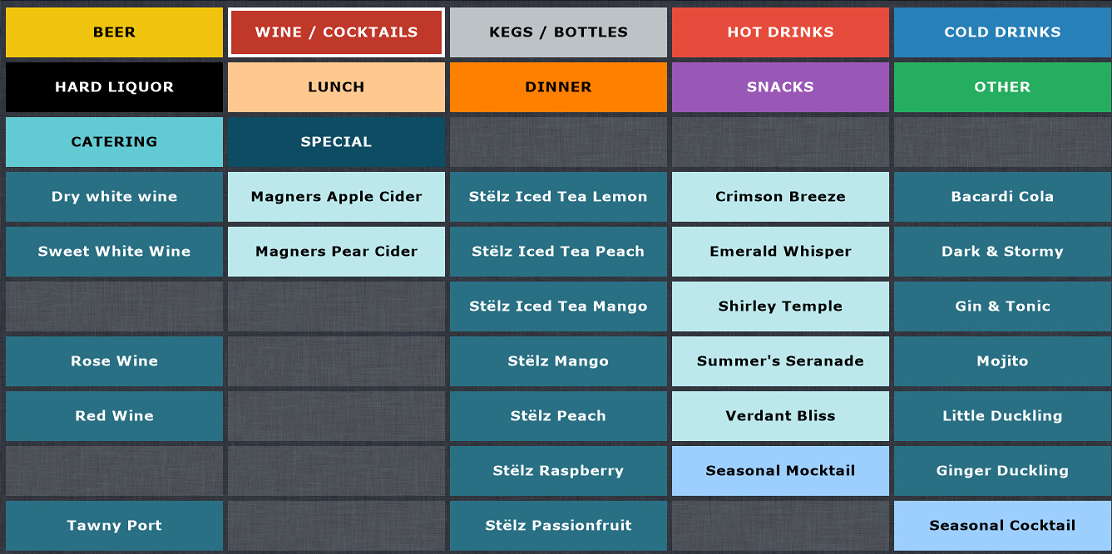
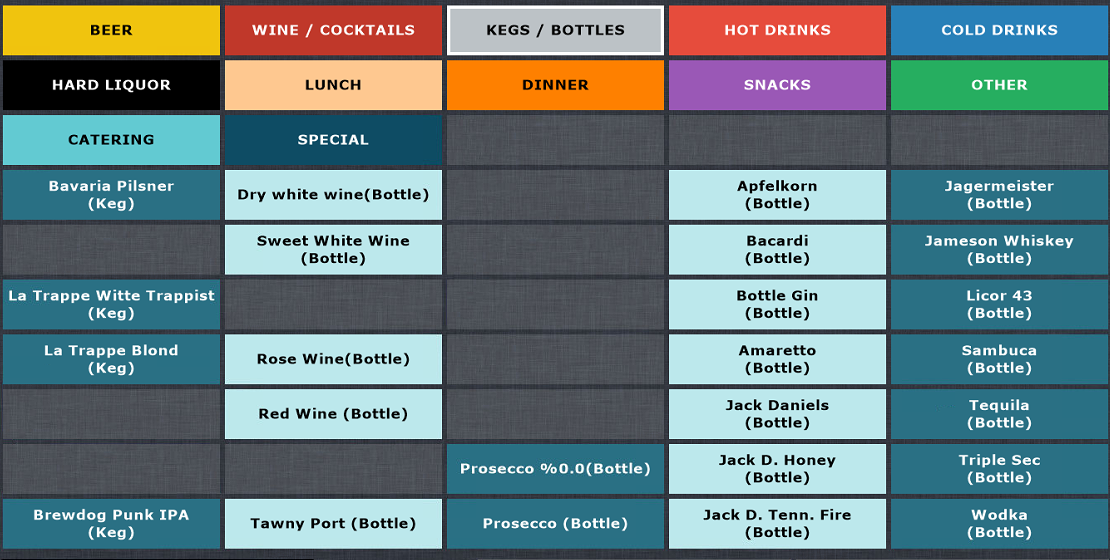
- KEGS / BOTTLES
Speaks for itself, you will only need to access this section if a guest orders a bottle of wine or sometimes a bottle of hard liquor
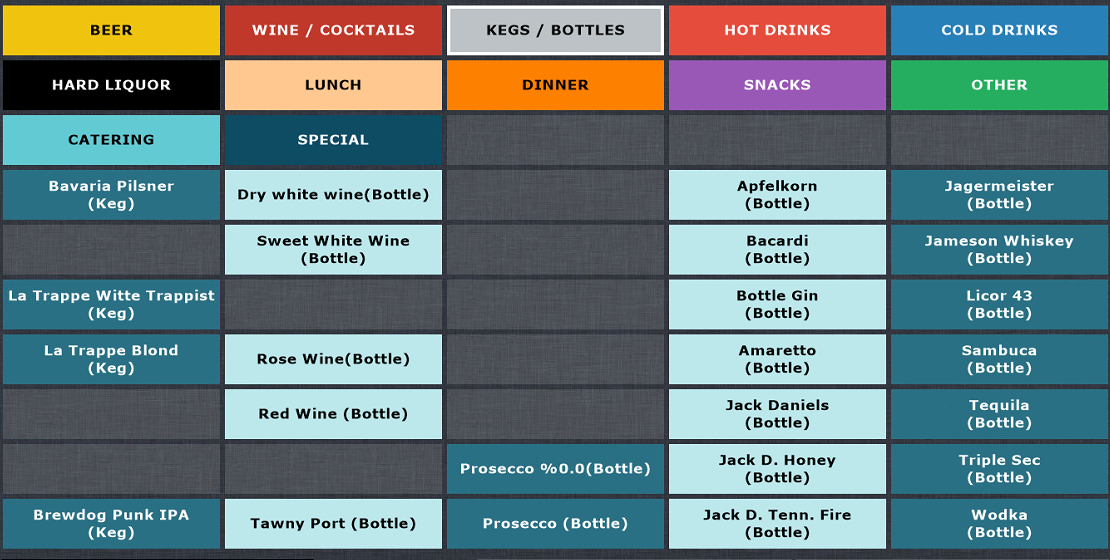
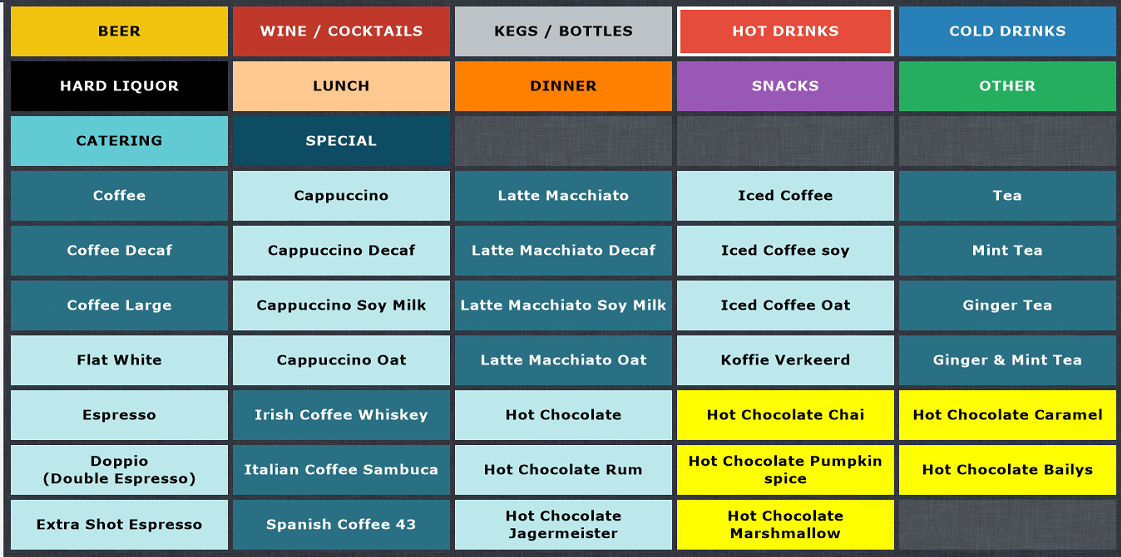
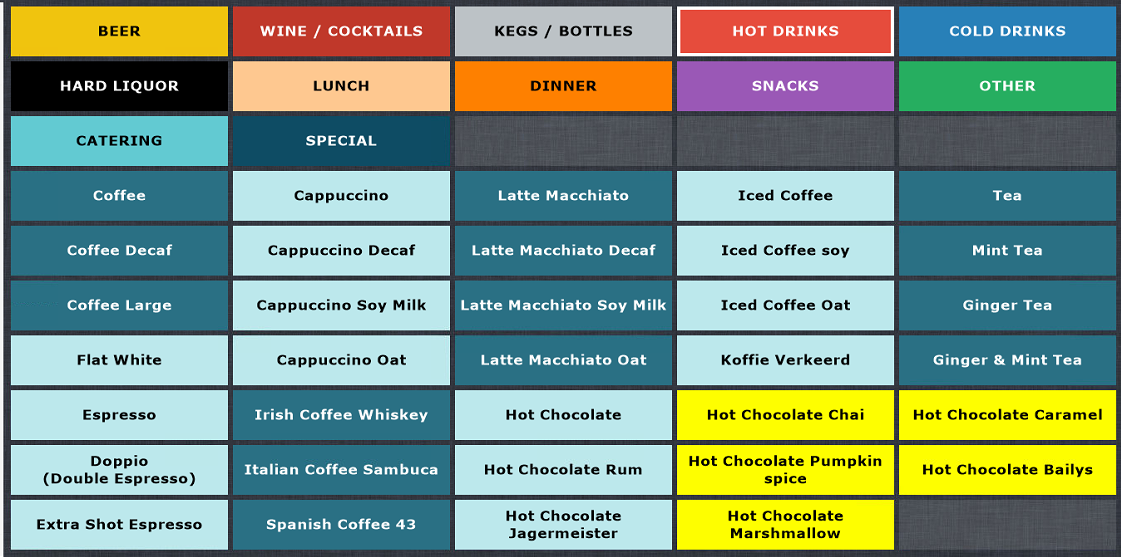
- HOT DRINKS
Speaks for itself, all hot drinks: Coffee, Hot Chocolate and Tea
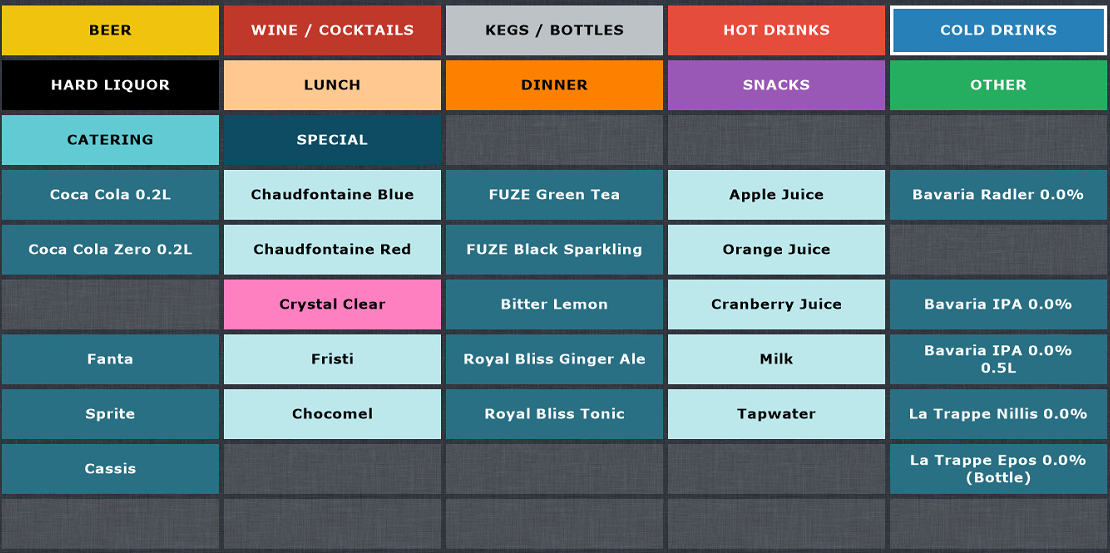
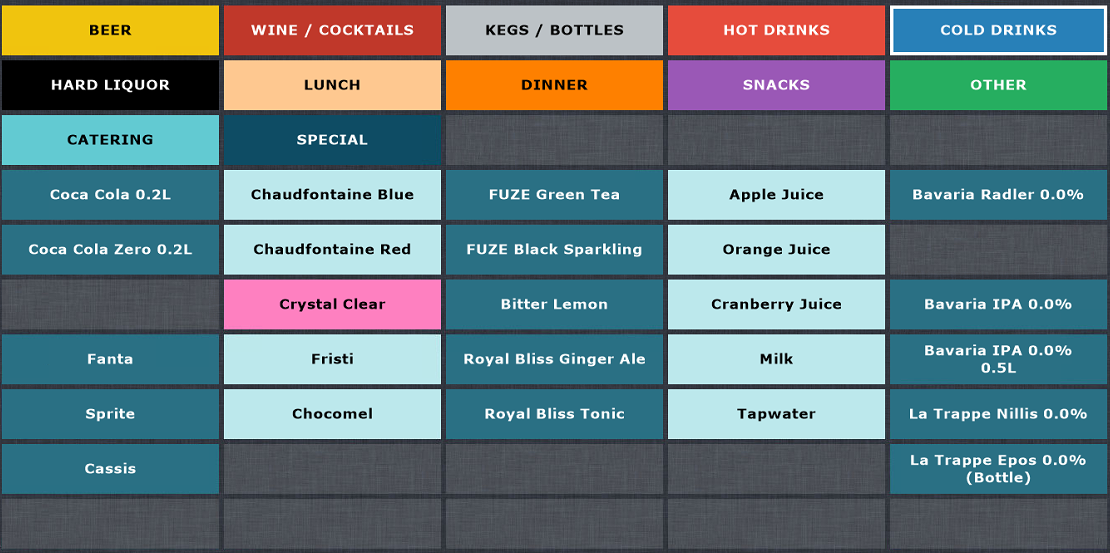
- COLD DRINKS
This section contains Soda's, but also our juices and alcohol free beers
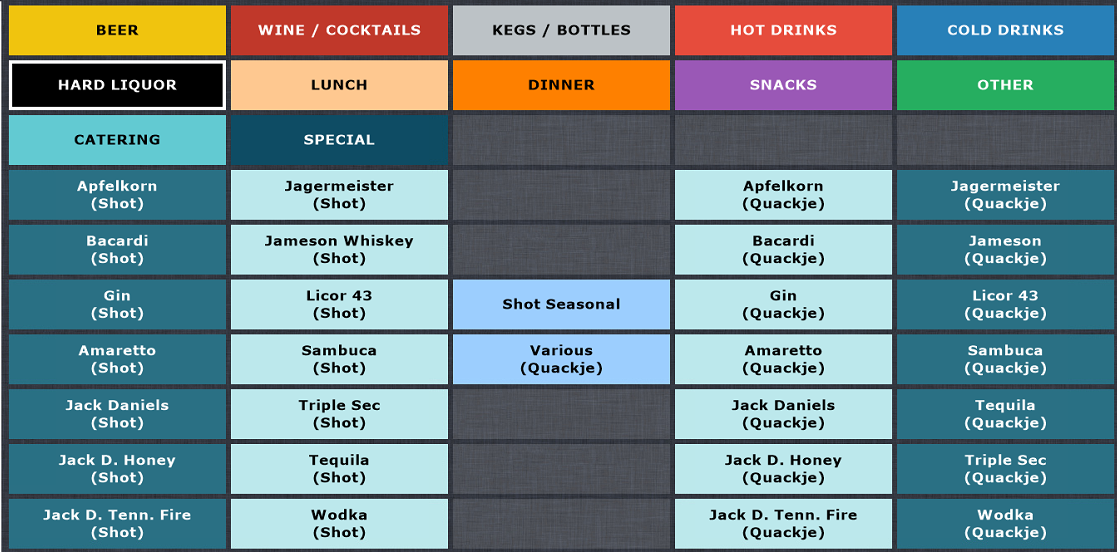
- HARD LIQUOR
Left half contains all singular shots and right half contains Quackje's. A Quackje, just like an Eendje, is 11 shots where the 11th shot is free.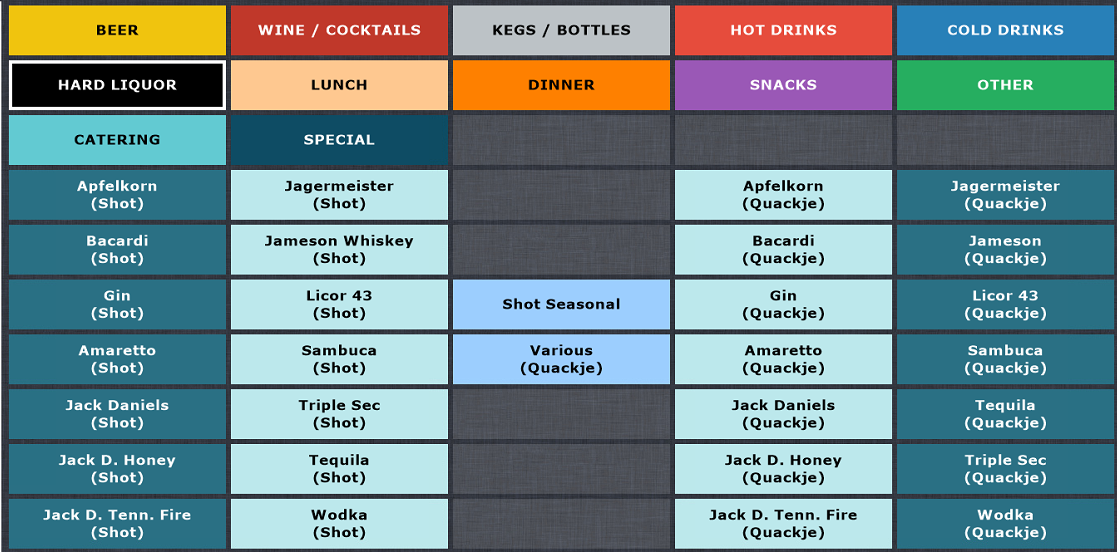
- You will not need to touch the LUNCH and DINNER sections
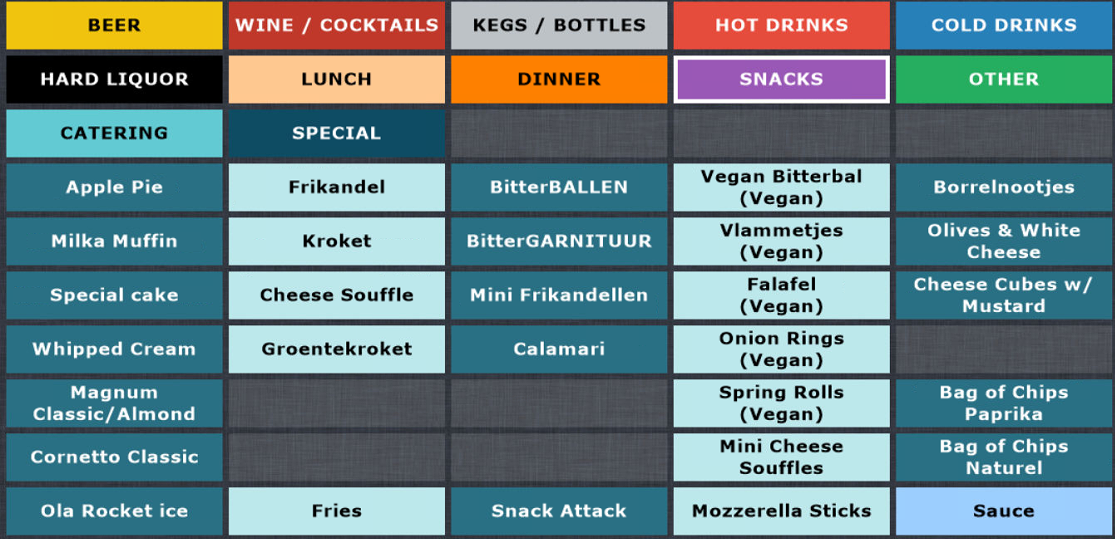
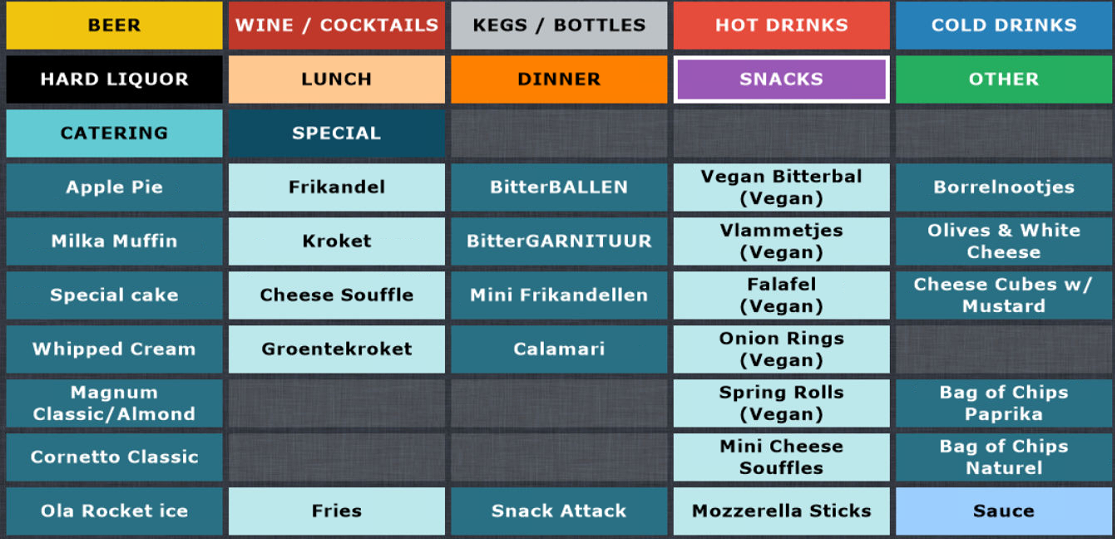
- SNACKS
The first column of this section contains all our cold snacks behind the bar and the ice creams which can be found in the freezer next to the bar next to the issue hatch. The small Chips bags behind the bar are found in the last row. All other items are snacks prepared in the kitchen.
When snacks/fries are ordered, always ask whether they want any sauce with it. For every 8 mini snacks they will get one sauce for free, which you can select after selecting the register item.
- OTHER
You will almost never use this category, except when people want a merch item such as Dice or Playing Cards. - You will never need the CATERING or SPECIAL categories.
Meteor (TODO)
Register tips
-
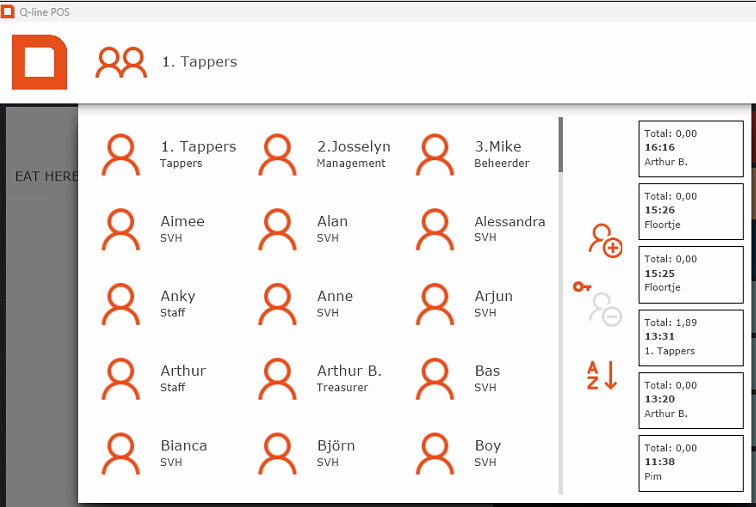
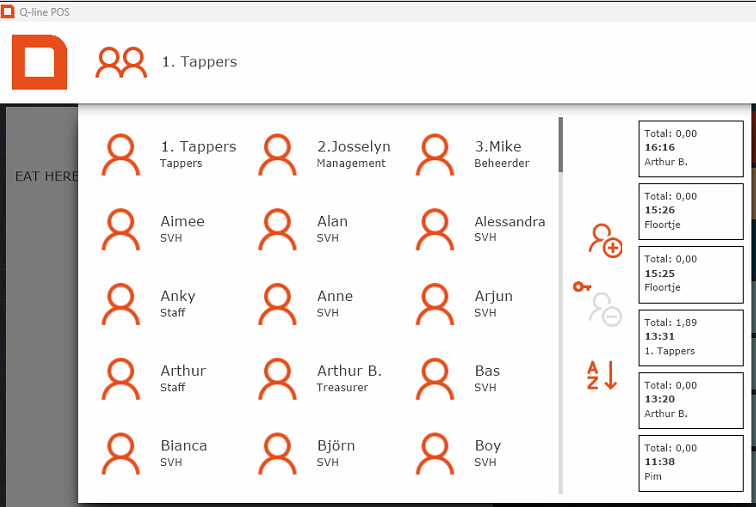
When you see this screen, you can always log in using the "tappers" account at the top – no password needed.
-
Scanned/selected the wrong association? Simply scan the right one, or press the red cross to remove it.
-
For multiple items, either tap the item several times or enter the number first in the bottom left and then the item.
-
Free drinks (e.g. “van het huis”): Always ask the SVH first – only they can approve this.